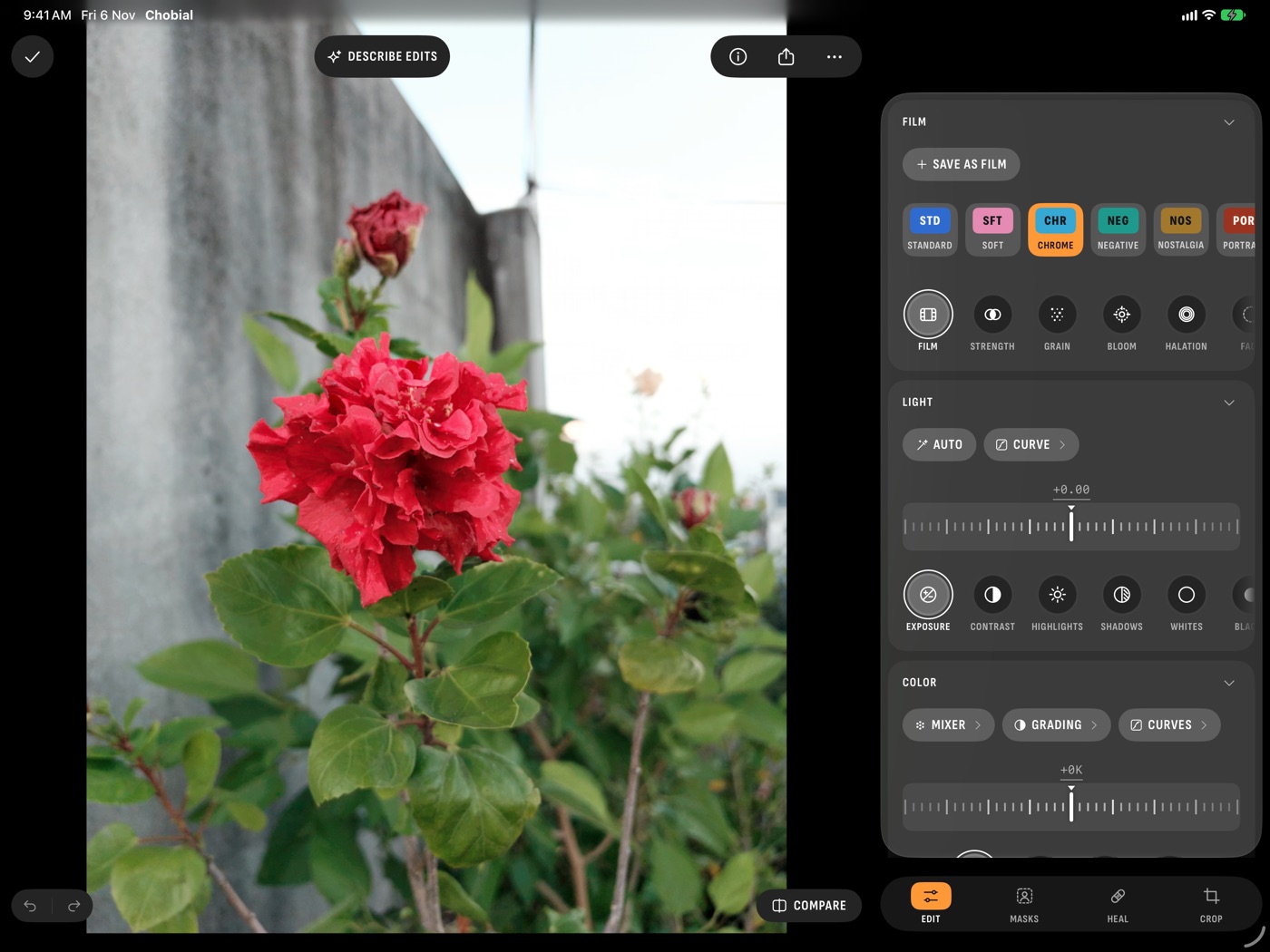
The editor on iPad
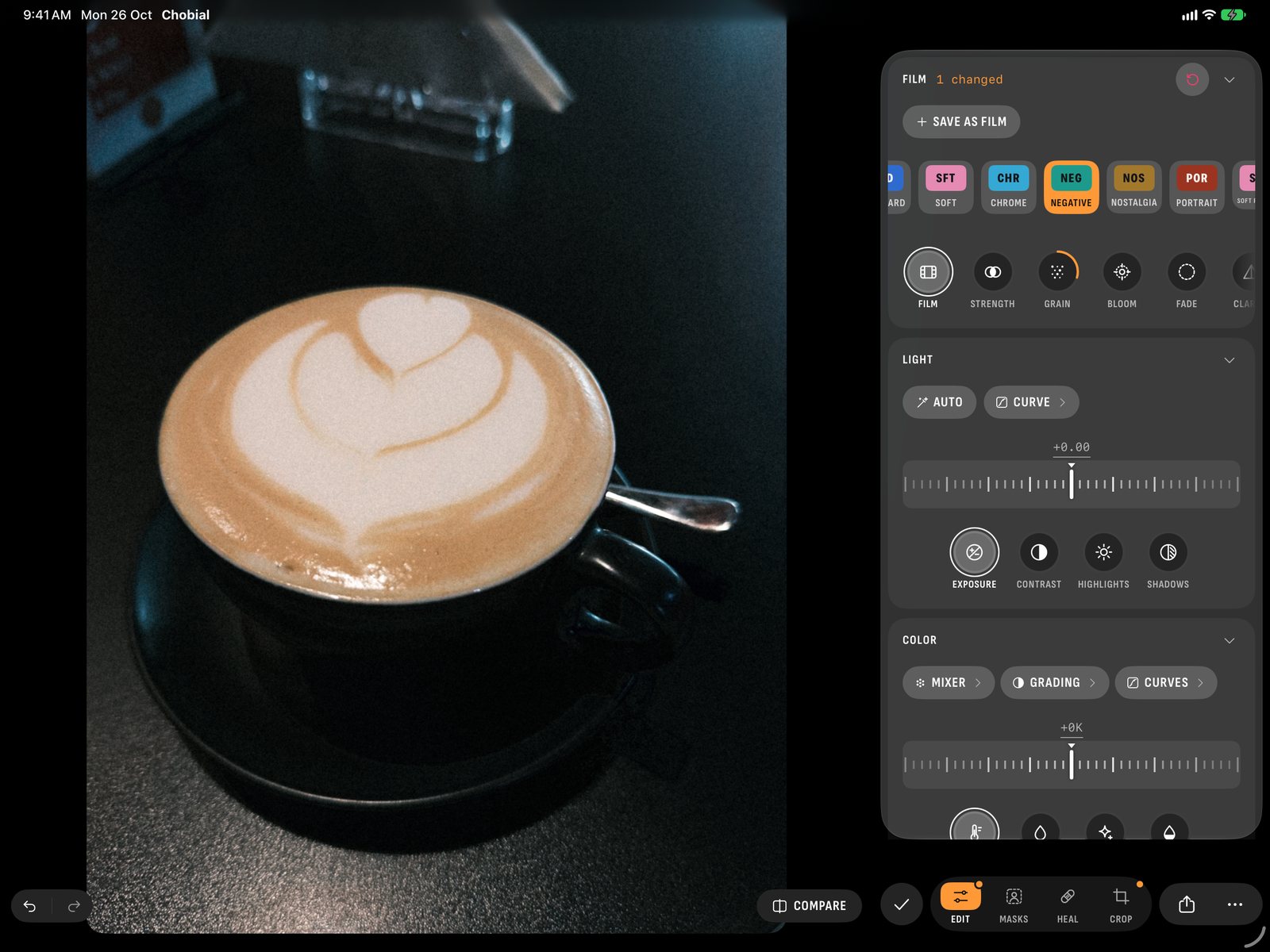
The editor's tools stand beside the photo. Film, Light and Color are folding cards under one Edit tab. Each card has a reset of its own. So you can turn down the film's strength and then fix the exposure without leaving the tab. Masks, Heal and Crop keep their own tabs.
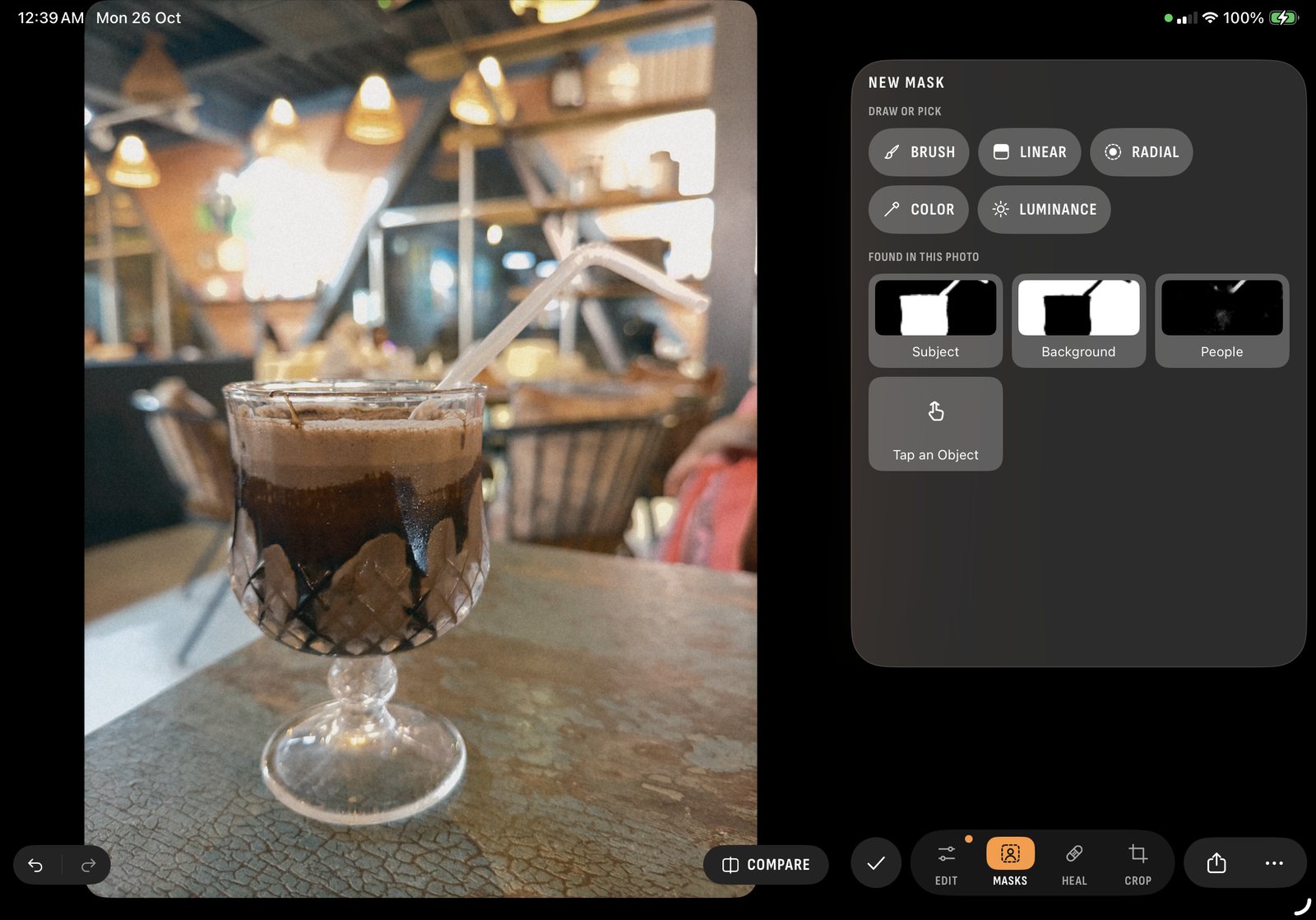
Masks find the subject, the sky, people and faces for you. You can also paint a mask with a brush, lay down a gradient, or pick an area by its colour or brightness. The masks help page goes through a sky mask step by step.
Heal and clone take out a dust spot or a wire across the sky. The steps are on the heal and clone page. To give a whole shoot one look, use Copy Edits. A whole roll can also go into another film in one go.
Chobial keeps the original of every photo. When your mood changes, you can develop a photo again in another film.
The camera on iPad
Turn the iPad on its side, and the camera's bar runs down one edge. That leaves room for a column beside the picture. The column shows the loaded film, the exposure as large chips and the histogram. The Controls panel lives in the column too, and it stays open. So the ISO is always in sight.
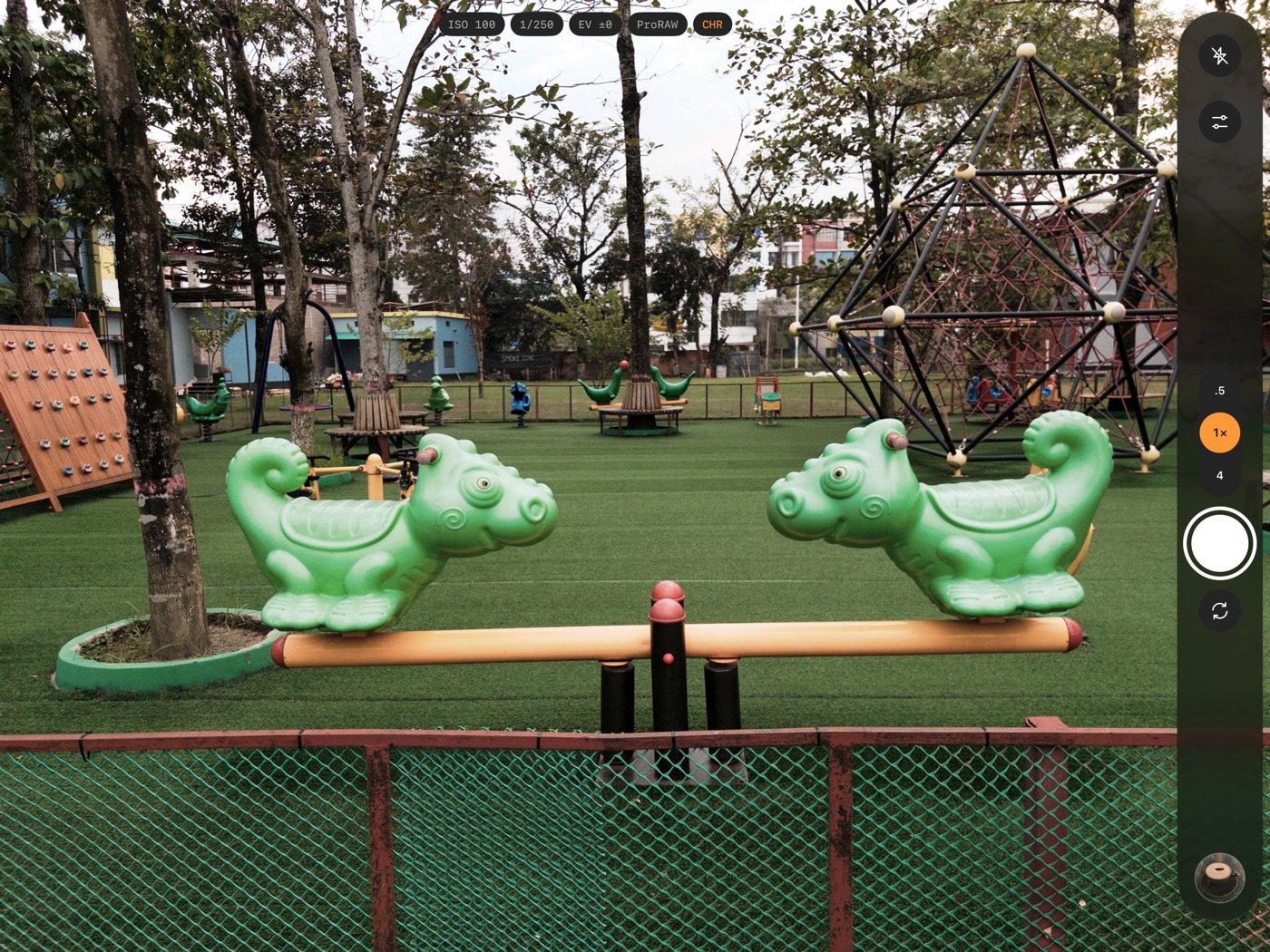
The iPad has the same camera as the iPhone, with more room around it. Swipe across the picture to load another film, and the whole scene changes to it.
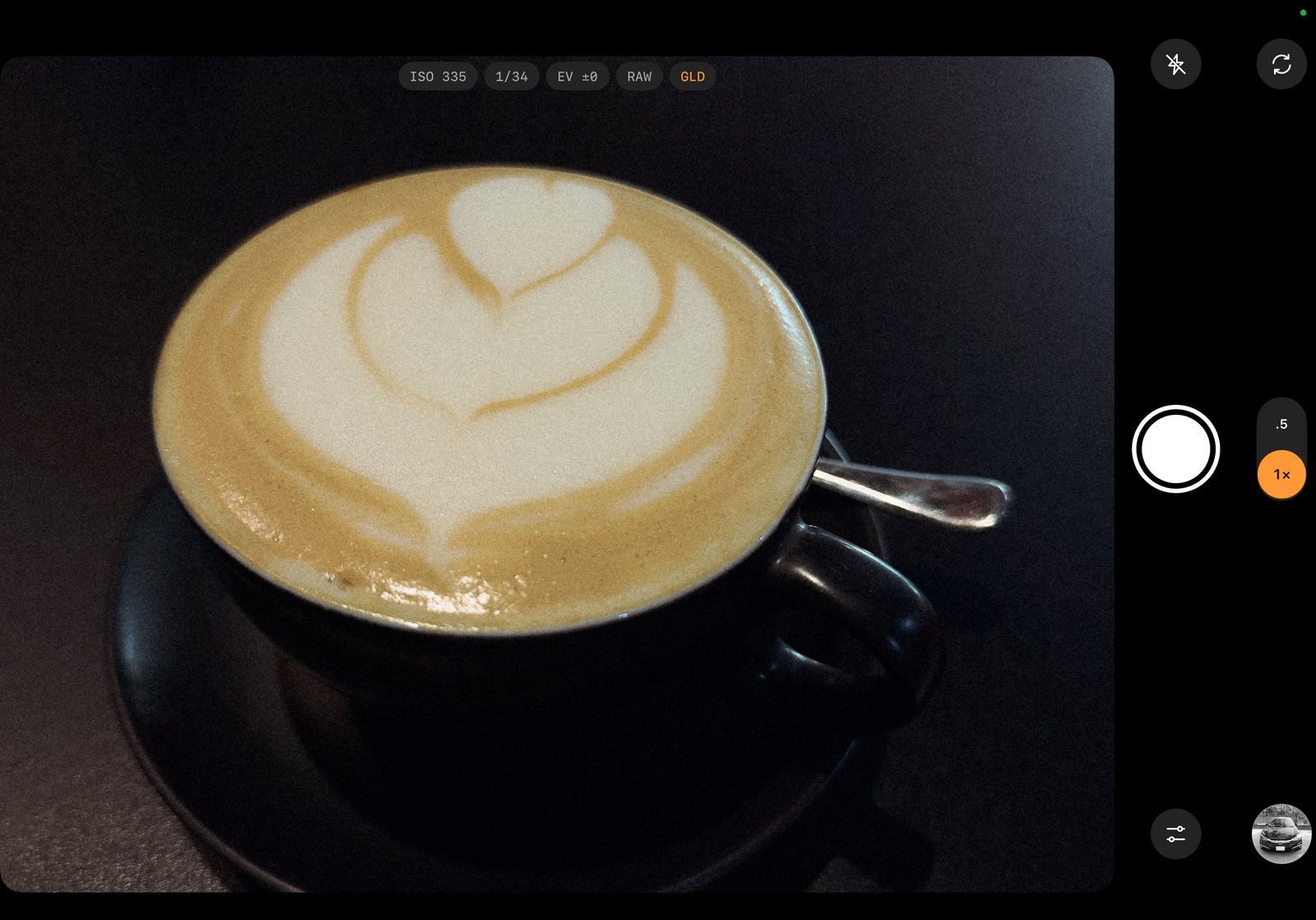
- Film: Chobial has 46 films built in. 35 are colour and 11 are black and white. Make as many of your own as you like. Every film shows live in the viewfinder.
- Exposure: leave it on Auto, or set ISO and shutter by hand on one dial. Exposure compensation moves in third stops.
- Metering: the column has a histogram. You also get zebras at a clipping level you choose, a grid and a level.
- Focus: focus by hand from near to infinity, with a loupe and focus peaking.
- Frame lines: 4:3, 3:2, 1:1, 16:9, and 65:24 like the XPan.
- Capture: RAW on lenses that offer it, and HEIF where there's no RAW. The films develop HEIF photos too. To shoot HEIF or JPEG, tap the format beside the picture, or go to Settings › Format.
Shoot on the iPhone, develop on the iPad
Your films, settings and photos sync through your own iCloud. A picture you take on your iPhone waits for you in Chobial on your iPad, edits included. A film you make on the iPad is in your iPhone's viewfinder the next time you go out.
Every iPhone and iPad signed in to your Apple Account shows your photos and their edits in Chobial.
- Sync: it's on from the start. Chobial keeps your photos in its own iCloud storage, separate from Photos and iCloud Drive. That storage counts toward your iCloud plan.
- Keeping a device apart: turn off Settings › Sync Photos on that device. Its photos then stay on it.
- Import: tap Import Photos at the top of the library. It takes RAW, ProRAW, HEIF and JPEG photos from any iPhone or iPad, and RAW files from most cameras. You can also plug in a camera or card reader with USB and import from it.
- Export: save a JPEG or HEIC at full resolution, or the original DNG. You can add one of five frame styles.
The details
- Devices: iPad, iPhone and iPhone Duo, on iPadOS 26 and iOS 26. Chobial doesn't run on Mac.
- LUTs and presets: any .cube file or Lightroom preset comes in as a film. Your films go out as .cube or .xmp files. The LUTs help page has the steps.
- Shutter: the Timer tile in Controls waits 3 or 10 s before the picture. The round button beside the shutter is Flash at first. Settings › Buttons lets you give it another job.
- Video: Chobial takes still photos only, with no video.
- iPhone only: Camera Control and the Apple Watch remote. The iPad has neither, so the in-app guide leaves those lessons out there.
- Price: you can shoot, develop, edit and make films for free. 22 films save for free as well. Pro saves in every film, and it saves photos that use masks and heal. Pro is $29.99 once, or $14.99 a year with the first week free. Those are US prices, and the App Store shows the price where you live.
- Privacy: Chobial has no account and no analytics, and it doesn't generate any pixels. The privacy policy has the details.
All 46 films are on the films page, with a look at each one.